Learn · phone and storage
How to free up space on your phone without deleting photos
Free up space on your phone by starting with what you can spare, and checking your backups before deleting photos, videos or documents.
Text drafted with artificial intelligence. The topic, the angle and the final review are Ibrahin's. How AI is used here
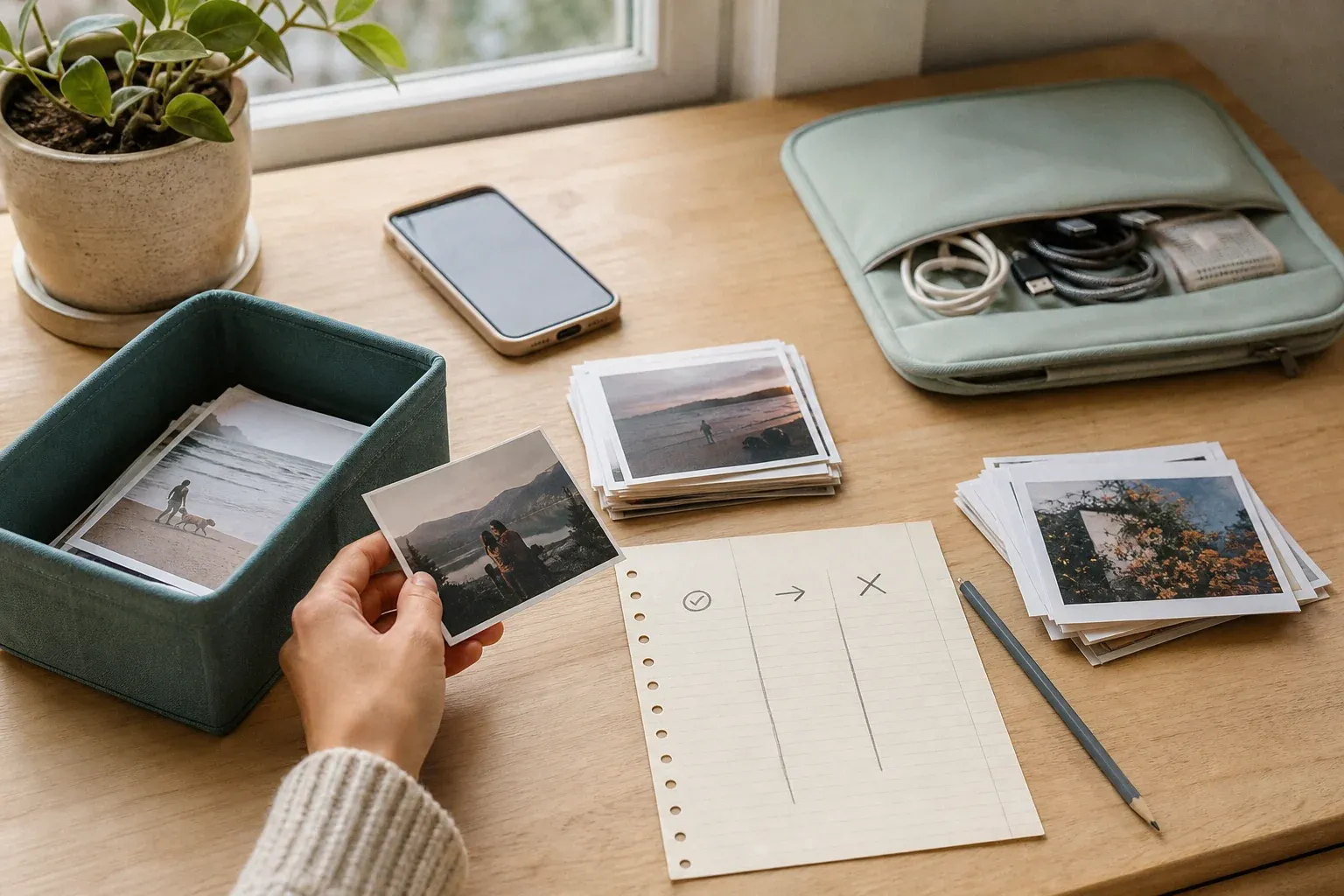
When your phone warns that space is running out, the usual reaction is to delete in a hurry. That is exactly when it is easiest to remove the only copy of a photo, a download you needed, or a conversation you have not backed up yet.
Short answer
Check the backup of your photos and documents first. Then sort your storage by size and start with the recycle bin, downloads, duplicate videos and apps you no longer use. Delete in small batches and check the result.
Before deleting: protect what matters
Open the photos app and confirm that the sync or backup finished. Check several old photos, not just the most recent ones. If an image exists only on the phone, copy it before you clean up.
Do the same with documents and conversations you need to keep. A recycle bin may let you recover something for a while, but it is not a backup and it can empty itself automatically.
Step 1: look at what is taking up the space
In the storage settings, review the categories. The screen may separate apps, photos, videos, temporary files, downloads and other data. Do not delete a whole category without understanding what is in it.
Sorting by size helps you find the items that free the most space with the least risk. One duplicated video can recover more space than a hundred small images.
Step 2: start with what you can undo
The safest order is usually:
- Empty the recycle bin, but only after reviewing what is in it.
- Delete downloads you no longer need.
- Remove duplicated videos, or ones sent several times.
- Uninstall apps you do not use, keeping their data if you need it.
- Clear temporary files using the system’s own function.
After each group, check how much space you have recovered. You do not have to delete everything to clear the warning.
Photos: syncing is not the same as a separate archive
If you use a cloud service for photos, check whether the “free up space” feature removes only the local copy after confirming it is saved. Read what happens when you delete a photo from the gallery, and from the cloud: the behaviour can differ between apps.
If you cannot explain it, keep an extra copy on a computer or a drive before deleting. Test with a photo that does not matter, and check that you can still see it afterwards.
Videos and messaging
Messaging apps can keep several copies of the same video. Check the file before deleting it, and ask yourself whether you need to keep it. Do not delete whole folders based on their name: some contain files the app needs in order to restore a conversation.
If a conversation matters, look for the official export or backup options. A screenshot does not always replace the original file.
Apps you no longer use
Uninstall from the official settings. If your phone offers “uninstall unused apps” or “offload app”, read the difference: one option may keep your documents and the other may delete them.
Do not install an unknown cleaning app to gain space. It may ask for excessive permissions, and deleting more things does not make it safer.
Common mistakes
Emptying the bin without looking
The recycle bin may be the last chance to recover a photo. Review its contents and the deletion dates.
Deleting by size without opening
A large file can be an important document. Open a sample and confirm what it is before removing it.
Confusing cache with data
Cache can usually be rebuilt; an app’s data may include documents or conversations. Use the official option and read the warning.
Doing one massive clean-up
Small batches let you spot a mistake and recover what you need.
What I would do
I would start with the largest category, but pick the reversible items first. I would check a sample of the photos, recover space from downloads and duplicated videos, and only then look at the apps.
Final checklist
- Do my important photos have another copy?
- Have I checked the recycle bin?
- Do I know what is in each large folder?
- Am I using the phone’s official tool?
- Have I deleted in small batches?
Sources
- Manage your photo and video storage — Apple
- Free up space on your device — Google Photos
Related
Review
Responsible for publication: Ibrahin. Date: 2026-09-02. Last checked: 2026-09-02.
Where to move the photos before deleting anything
The first step costs nothing: move the photos to your computer or an external drive and check that they open there. Until you have seen them open outside the phone, do not delete them from the phone.
If you also want a copy outside the house, look for one where you can get a single photo back without a fight, and where you know what you will be paying in a few years, which is where these things go wrong.
- pCloudpaid link
It can be paid once instead of as a monthly fee, which is the thing that tends to lapse without anyone noticing.
The marked links earn a commission if you sign up after following them, and you pay the same. The criteria above were written before checking which one paid. Affiliate disclosure