Learn · backups and storage
How to back up your phone properly
How to protect the photos, contacts and conversations on your phone with backups you can check and genuinely restore.
Text drafted with artificial intelligence. The topic, the angle and the final review are Ibrahin's. How AI is used here
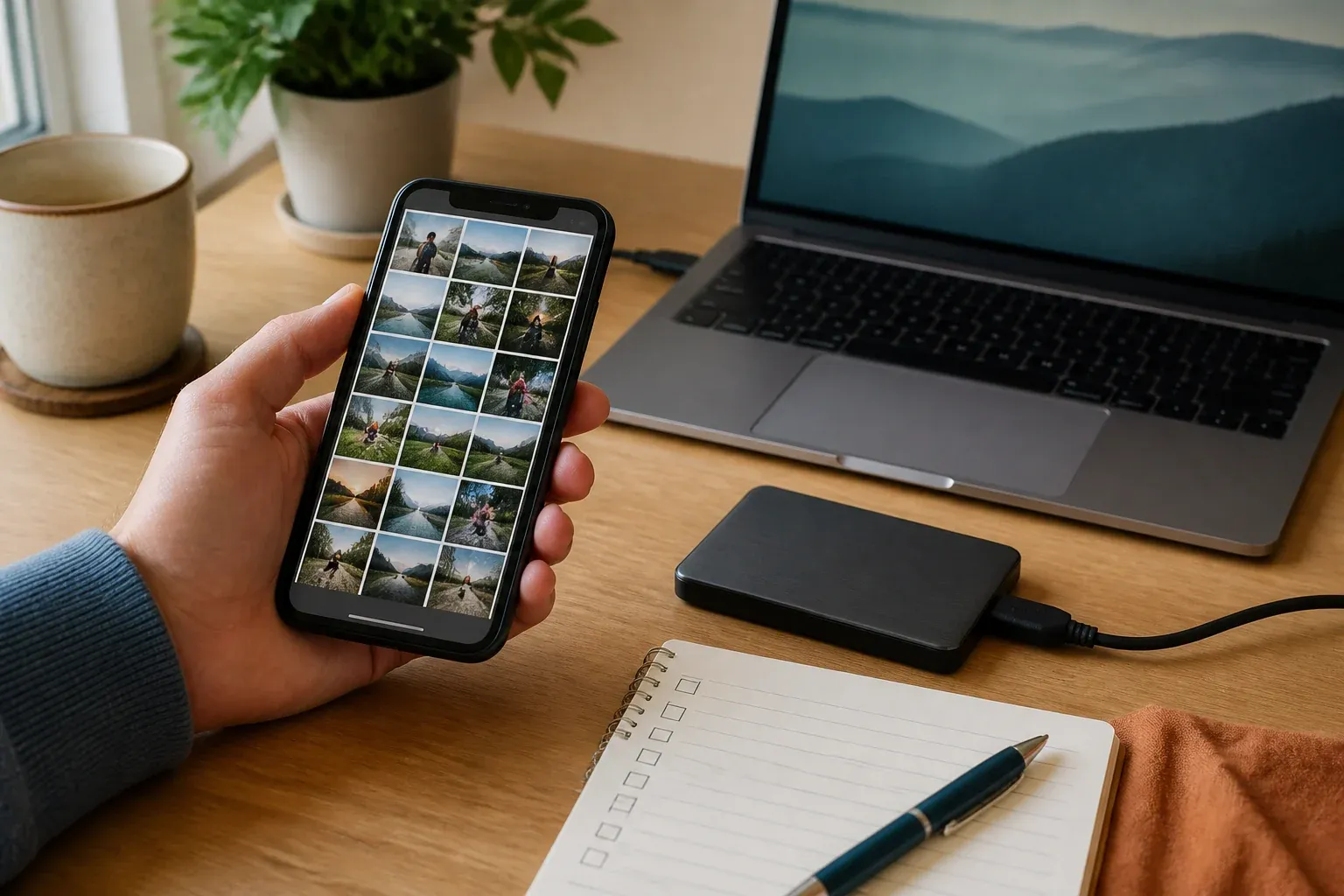
Seeing a photo in the cloud does not on its own prove that you have a complete, restorable copy. It may be syncing: if you delete the file in one place, the change can spread to the others. A backup has to let you recover something even if you lose the phone, break it, or temporarily cannot get into an account.
Short answer
Combine the system backup with a second copy of your important photos and documents. Check what each one includes, and restore some test files before you trust it.
What you need to protect
Make a list before touching any settings:
- photos and videos;
- contacts;
- conversations and files from messaging apps;
- downloaded documents;
- notes and recordings;
- recovery codes and keys that must be kept safely.
Not every service stores the same things. A phone backup may include settings and apps, but not necessarily all of their data. A synced gallery may keep photos, but not conversations or downloads.
Step 1: check the system backup
Open the phone’s official settings and check the date of the last backup, the account it uses, and what it includes. Look for what happens if you change device or reset this one. If the screen does not explain it, read the manufacturer’s official help.
Do not settle for a “backup complete” message. Check the contents and the space available. A backup that failed for lack of storage can still show settings that look correct.
Step 2: protect the photos separately
Choose a second location: a computer, an external drive, or a second cloud service you understand. The copy has to be independent: if every copy depends on the same account, password or device, one single problem can lock them all at once.
Keep the important photos in folders you recognise, and check a sample from different dates. You do not need to duplicate every file by hand, but you do need to know where the original is and when the last copy was made.
Step 3: test the restore
The minimum test can be small:
- Pick a photo, a contact and a document that is not sensitive.
- Check that they appear in the backup.
- Delete a test copy, or use another device.
- Restore them.
- Check that they open and keep the information you need.
Do not run a full restore on your main phone without being clear about what will be erased. Start with files you could recreate.
Step 4: protect the account that holds the backup
Turn on two-step verification, review the connected devices, and keep the recovery methods current. If you lose the cloud account, a backup you cannot download does not protect you.
Also check who can see shared albums or folders. Do not confuse “it is in the cloud” with “only I can see it”.
A backup is not the same as syncing
Syncing tries to keep two places holding a similar version. A backup tries to let you recover a version if something goes wrong. A recycle bin and a version history help, but they have time limits and do not replace a second, independent copy.
Common mistakes
Relying on a single account
If you lose the password or the second factor, you can lose access to the whole cloud. Keep a safe recovery method.
Not looking at what is included
The backup icon does not guarantee that photos, chats, downloads and settings are all saved. Check each category.
Only testing that the file exists
Open a restored sample. A file that is listed but damaged is not a useful backup.
Leaving the drive plugged in permanently
A connected copy can be affected by a deletion, a fault or malicious software. Disconnect the copy when you are not updating it, if that system allows it.
What I would do
I would first check five photos from different dates and one document. Then I would review contacts and conversations, and keep a second copy of the memories that matter in a separate place.
Final checklist
- Do I know what the phone backup includes?
- Do I know the date of the last successful backup?
- Is there a second, independent location?
- Have I restored something as a test?
- Can I recover the account that protects the cloud?
Sources
- Back up iPhone — Apple
- Back up or restore data on your Android device — Google
Related
Review
Responsible for publication: Ibrahin. Date: 2026-09-02. Last checked: 2026-09-02.
Where to keep the second copy
Before paying for anything: the cheapest second copy is the one you can make today, on your own computer or on an external drive you already have around. That alone satisfies the two-copies rule, and it costs nothing.
If you also want it outside the house — for a burglary, a fire or a breakdown — what matters is that it does not depend on the phone turning up, that you can get a single file back without being a technician, and that you know what you will be paying three years from now.
- pCloudpaid link
It has a one-off plan: you pay once and there is no monthly fee to forget about and have lapse on the very day you need it. It also has monthly plans, if you would rather try it first.
The marked links earn a commission if you sign up after following them, and you pay the same. The criteria above were written before checking which one paid. Affiliate disclosure