Learn · security
What to do if someone got into your account
Step by step, what to do if you suspect someone has got into your account: contain the access, recover it and warn others without making things worse.
Text drafted with artificial intelligence. The topic, the angle and the final review are Ibrahin's. How AI is used here
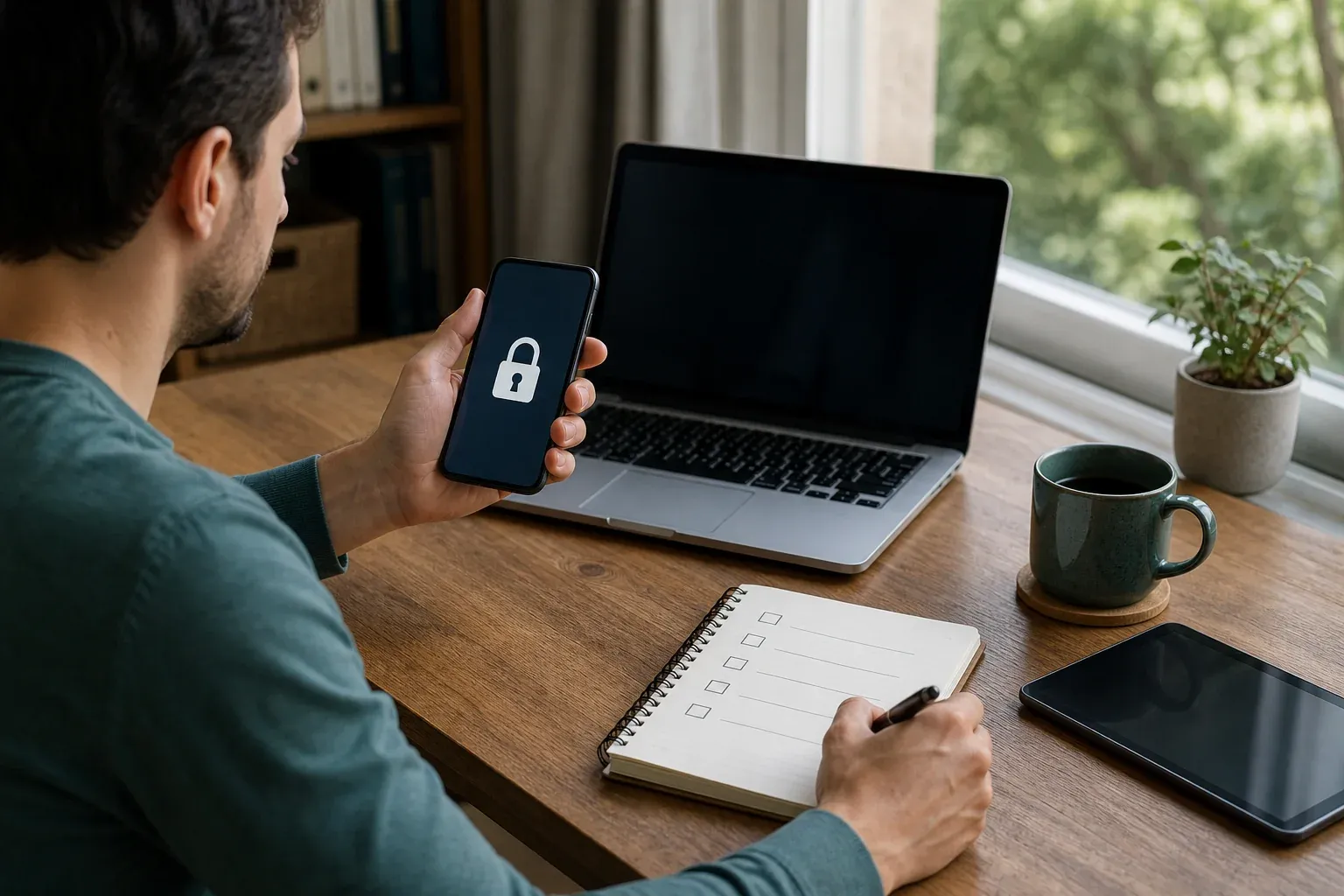
An account may be compromised if a strange sign-in appears, the password changes without your permission, messages you did not write are sent, or an unfamiliar recovery address shows up. The important thing is not to act through the same link that alerted you: take back control through the official channel.
Short answer
Use a device you trust, go to the official site by typing the address yourself, change the password, close open sessions, review the recovery settings, and revoke any apps or tokens you do not recognise.
1. Work out whether you still have access
If you can get in, do not sign out before securing the account. Open the security settings and check recent activity, devices, sessions, and the recovery email and phone. Take screenshots only if they show no codes, passwords or other people’s details.
If you cannot get in, use the official recovery process, typed into the browser by hand. Do not trust a message promising to recover the account, and do not pay anyone offering to “unlock” it.
2. Protect the main email account first
If the affected account is not your email, first secure the email that receives its recovery links. Change its password from the official site, turn on two-step verification, and check for automatic forwarding or unfamiliar devices.
A compromised email account can let an attacker back in even after you change the password on a social network or a shop.
3. Change the password without reusing it
Create a new password used only for that account. If the old one was used on other services, change those accounts too, starting with email, banking, payments, Apple, Google or Microsoft, and storage.
Do not email yourself the new password to keep it. Use a password manager and check that the change has actually been saved.
4. Close sessions and revoke access
Changing the password does not always disconnect every device. Look for options like open sessions, devices, authorised apps, tokens, passkeys and forwarding rules. Revoke anything you do not recognise, and sign in again only from your own devices.
If the platform offers recovery codes, generate new ones after recovering the account. The old ones may be in someone else’s hands.
5. Work out what may have happened
Check sent messages, profile changes, purchases, shared files and connected services. Note the dates and the actions. If you see a charge, contact your bank through its official channel; if it is a work account, tell whoever is responsible for security or IT.
Do not delete evidence before you know whether you need to report it. But do not publish full screenshots either: they can reveal addresses, codes or other people’s information.
6. Warn your contacts if you need to
If the account sent messages, warn people through another channel: “My account was compromised; do not open links or reply to messages sent from it.” Do not forward the suspicious message without explaining the risk.
Common mistakes
Only changing the password
An authorised app or an open session can keep the access alive. Check every door.
Following the link in the alert
The attacker may have triggered the alert. Go in through the official address you already know.
Recovering the account from an infected device
If your computer or phone is behaving strangely, use another, up-to-date device, and check the first one before entering new passwords.
Warning people from the compromised account
If someone else controls the account, they can read or alter your warning. Use the phone, another account, or talk to people in person.
What I would do
I would follow this order: main email, unique password, open sessions, recovery settings, connected apps, contacts. I would not try to fix ten accounts at once; I would protect the account that can recover the others first.
Checklist
- Did I go in through the official site?
- Is the password new and used nowhere else?
- Have I closed sessions and revoked apps?
- Have I changed the recovery codes?
- Have I checked payments, messages and shared files?
Sources
- Recovering a hacked account — NCSC
- Hacked accounts — NCSC
- Data breach guidance for individuals — NCSC
Related
Review
Responsible for publication: Ibrahin. Date: 2026-09-02. Last checked: 2026-09-02.